Help & FAQ
Get in touch
Email us at support@familycart.app and we’ll get back to you as quickly as we can.
From install to first item, in under a minute.
New to FamilyCart? Here’s how to get your household on the same list in under a minute.
- Step 1.
Install FamilyCart
Tap the App Store badge below to install FamilyCart on your iPhone. The app is free, with no ads and no in-app purchases.

Coming to Android soon
- Step 2.
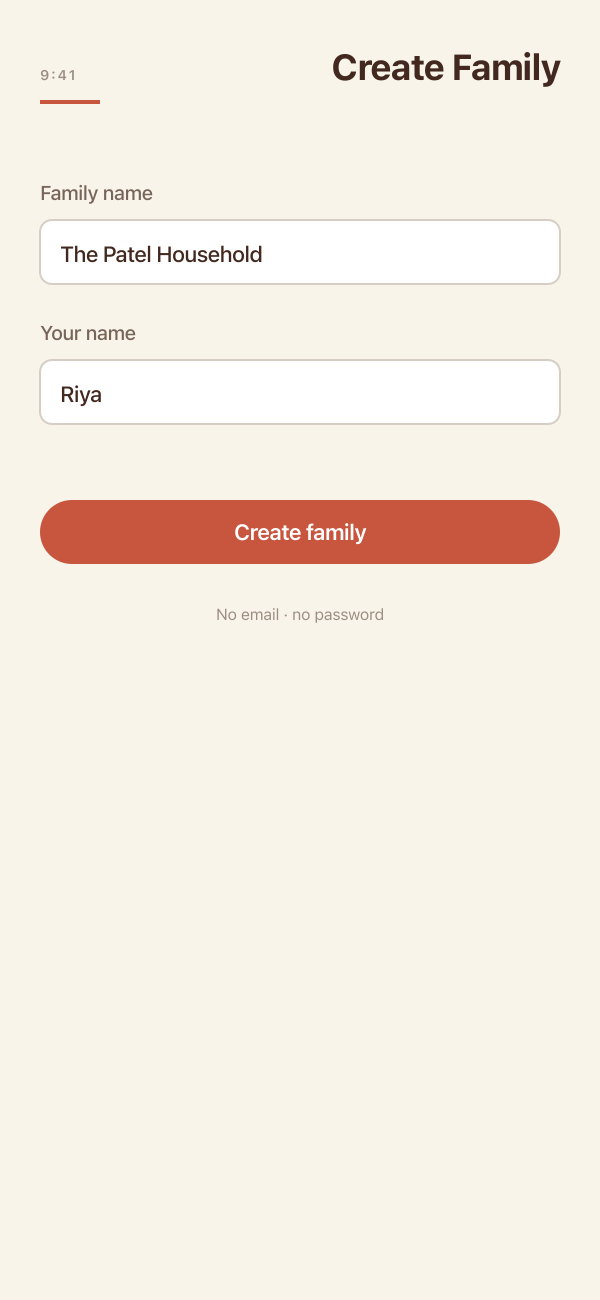
Create your family
Open FamilyCart and tap "Create a Family." Enter your name and a name for your household (e.g., "The Johnsons"). There’s no signup, no email, and no password — your family exists as soon as you tap "Create Family."
- Step 3.
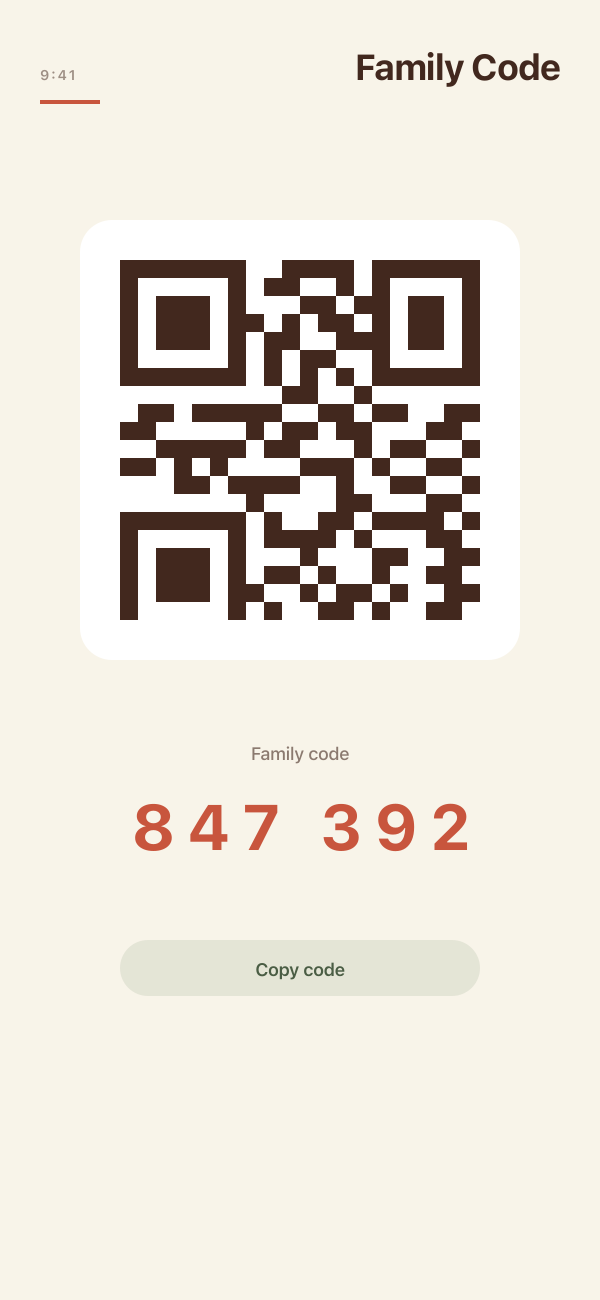
Invite your household
After creating a family, you’ll see your 6-digit family code and a "Show QR Code" button. Text the code to anyone you want to invite, or hold the QR up for them to scan in person. They install FamilyCart, tap "Join a Family," and enter the code or scan the QR.
- Step 4.
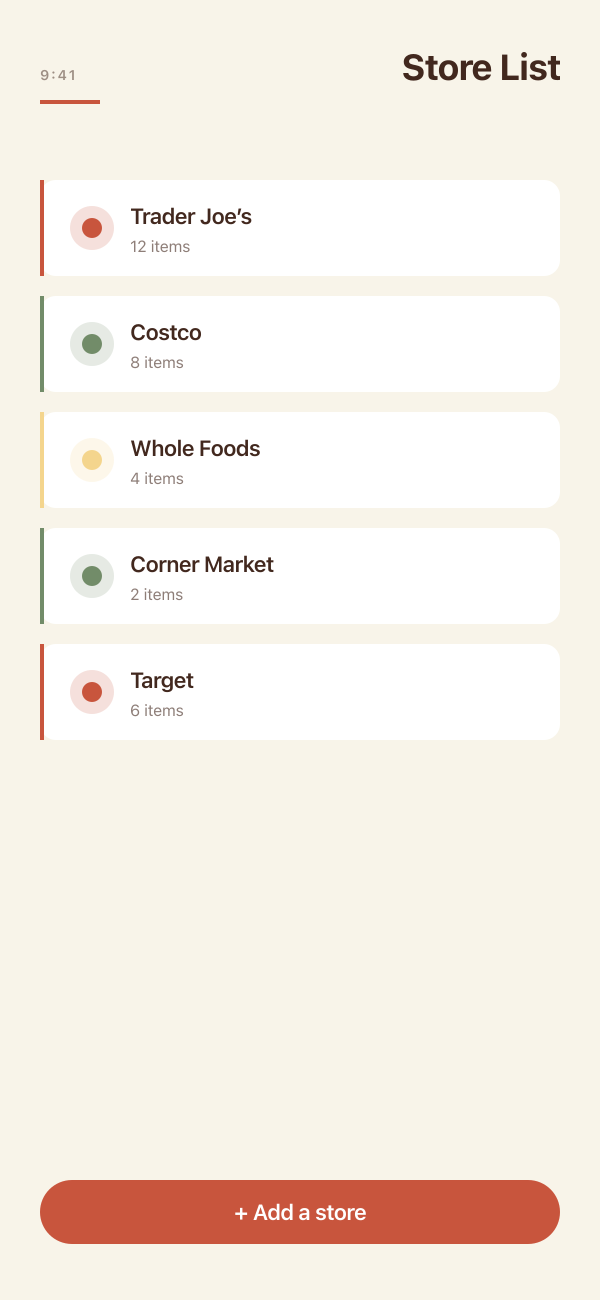
Add your first store
On the Grocery Lists tab, tap "Add Store" to create your first store — Costco, Trader Joe’s, the corner market, whatever you actually shop at. FamilyCart organizes items by store so you shop one stop at a time instead of fishing through one giant list.
- Step 5.
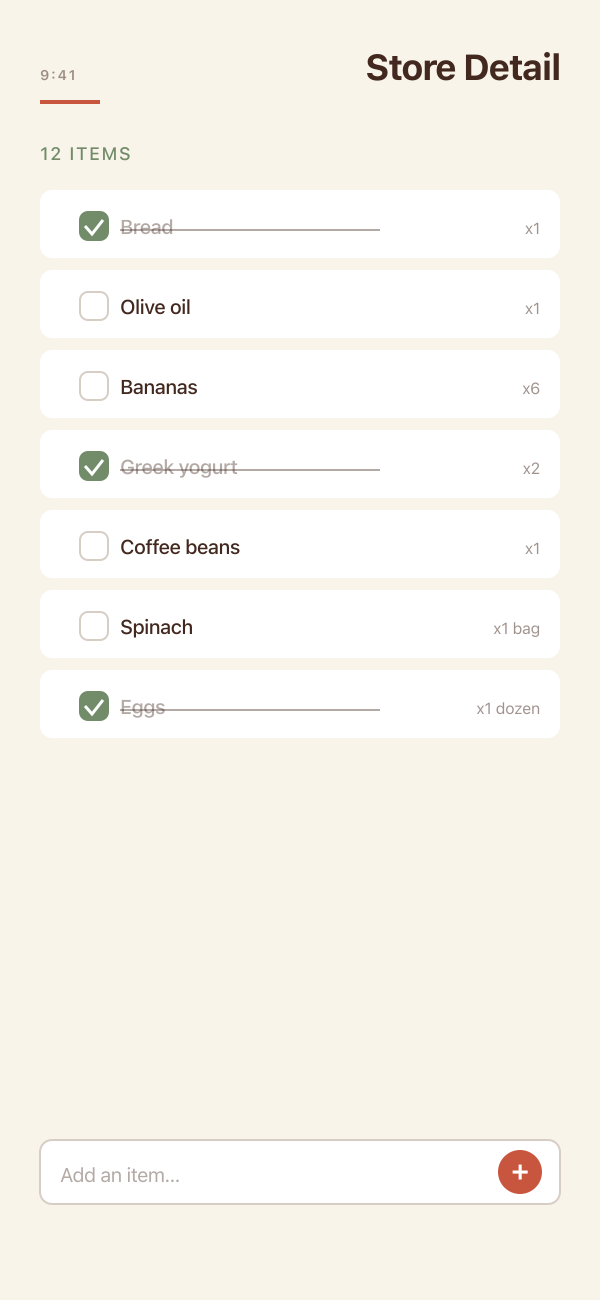
Add your first items
Tap into a store, type an item name in the bar at the bottom, and tap "Add Item." Everyone in your family sees it appear in real time. Swipe an item to edit it, move it to another store, or save it to Favorites for one-tap re-adding next week.
- Step 6.
Switch families or add another
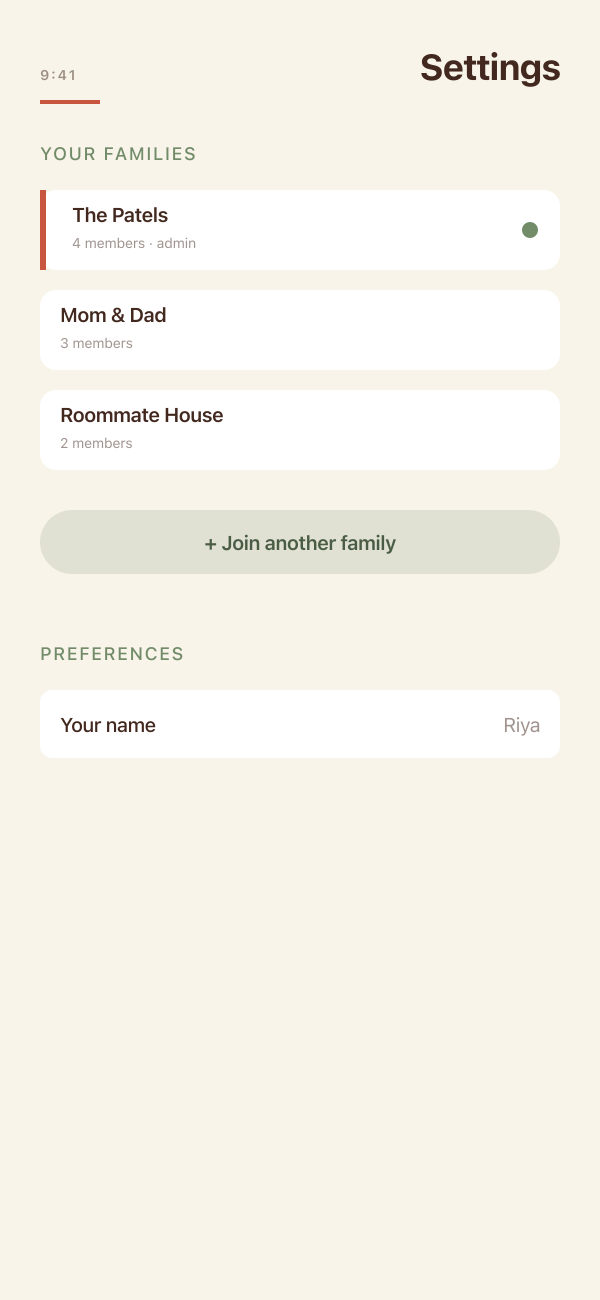
You can belong to more than one family — your home, your parents’ home, the cabin. Open Settings to switch between families in two taps, or join another household with its 6-digit code.
Common questions
Pricing and trust
Is FamilyCart really free? Will it stay free?
Yes. The full app is free, with no ads, no premium tier, and no in-app purchases. The core grocery list will always stay free — that’s the promise we lead with on the home page, and it’s the one we plan to keep.
Are there ads or in-app purchases?
No ads, no in-app purchases, no upsells. We don’t run banner ads, we don’t sell sponsored items, and we don’t hide features behind a paywall. Open the app and you have all of it.
How do you make money?
Honestly: we don’t, today. FamilyCart is built and maintained by a small team and the app is free with no ads, no premium tier, and no paid features. We may add an optional paid tier in the future for power features (for example, recipe import or shopping insights) — but the core grocery list will always stay free.
Accounts and signup
Do I need to create an account?
No. The first person creates a family — that’s the whole signup. Everyone else joins by typing a 6-digit code or scanning a QR. There’s no email to verify and no password to remember.
What happens if I lose my phone? Will I lose my list?
Your family’s list lives in the cloud, not on your phone, so the list itself is safe. To get back in on a new phone, install FamilyCart and join your family with the same 6-digit code that anyone in your household can share with you. If you’re the only person in your family, email us at support@familycart.app and we’ll help you recover access.
Can I use FamilyCart on more than one device?
Yes — each device joins your family with the same 6-digit family code. There’s no “sign in” step; the code is what links a device to your shared list. You can add a phone, a tablet, or a partner’s device the same way you’d add a new family member.
Using the app
How do I create a family?
Open FamilyCart, tap “Create a family,” and give your household a name. That’s it — your family exists, and you’ll see your 6-digit code and a QR ready to share.
How do I invite someone to my family?
From Settings, open your family info to see the 6-digit code and the QR code. Text the code to anyone you want to invite, or hold the QR up for them to scan in person. They install FamilyCart, tap “Join a family,” and they’re on your list.
Can I belong to more than one family?
Yes. You can be in your own household, your parents’ household, and a roommate house at the same time. Switch between them in two taps from Settings — each family has its own list, its own people, and its own stores.
How do I leave a family?
Open Settings, switch to the family you want to leave, and tap to remove yourself. The rest of the family keeps their list; you just stop seeing it on your device. If you’re the family admin, ask another member to take over before you leave so the family isn’t left without one.
Privacy and data
What data does FamilyCart collect?
The minimum we need to run a shared list: an anonymous device ID, your family membership, and the items you and your family add to your list. No name, no email, and no phone number is required to use the app. The Privacy Policy has the full picture.
Who can see my grocery list?
Only the people who’ve joined your family with your code. We don’t sell data, run ads, or build profiles, and we don’t share your list with anyone outside your household. Your list is between you and your family.
Where is my data stored?
New FamilyCart data is stored in a managed PostgreSQL database hosted on Fly.io, scoped to your family’s private workspace. Some earlier families still have legacy data in Google Firebase while we finish the migration, but the same family-only access rules apply. The Privacy Policy has the full storage details.
Platforms
Is there an Android version? When is it coming?
Not yet — FamilyCart is iOS-only at launch. Android is on the roadmap, and we’ll announce it on the home page when there’s a real date to share. We’re not collecting an email waitlist for it.
Troubleshooting
I can’t get the family code to work — what should I do?
Double-check the digits with the person who shared the code, and make sure you’re typing it into the “Join a family” screen rather than “Create a family.” Codes are six digits, no spaces. If it still won’t go through, email us at support@familycart.app and we’ll get you on the list.